


As immersive technology increasingly becomes adopted by organizations worldwide, there are still significant challenges to using virtual reality (VR) at scale. End-users often feel overwhelmed, stuck, or confused. Meanwhile, technical administrators struggle with ensuring users are in the right VR experience, guiding them through VR and how to address any potential bugs or issues.
Administrators need a way to see what users see in VR to guide them and troubleshoot any issues that may come up. And the more VR headsets an organization scales with, the more essential it is that admins and facilitators have tools to guide and troubleshoot users remotely.
We built Casting to help exactly with that. Casting makes it easy for managers to monitor users’ progress, guide them through VR experiences, and troubleshoot any problems.
Casting is available for all supported devices including: Meta Quest, PICO, HTC VIVE, Lenovo, and DPVR.
Monitor Users in VR
With Casting, administrators and facilitators have the ability to observe precisely what their students or employees are seeing in virtual reality (VR).
How do you know if multiple students in a classroom are going through the VR modules you’ve assigned? What about employees who might be using their headsets in an office across the building? You can simply use Casting from the ArborXR web portal to monitor their progress live.
By remotely monitoring, facilitators gain an understanding of users’ actions within VR and can help them stay focused. You’ll never have to guess what people are doing in VR with Casting. This invaluable visibility can help you keep every student or employee on track while enhancing the overall VR experience for both administrators and users.
Guide Users in VR
One of the biggest obstacles to getting user adoption is the intimidation people feel when they put a VR headset on for the first time. No more confusion, fear, or overwhelming moments in VR. Casting places administrators firmly in the driver’s seat, offering real-time visibility into users’ VR experiences.
Do you see a student or employee struggling? View what they are trying to do in their headset and guide users through every step of their virtual journeys, ensuring they navigate with confidence. With Casting, you become the trusted facilitator, leading users to their next actions in VR and maximizing the value derived from immersive experiences.
In addition to casting, you can also remotely launch content, and even remotely reboot the headset. This gives admins, trainers and teachers even more control over what learners see in VR.
Launch Content in VR
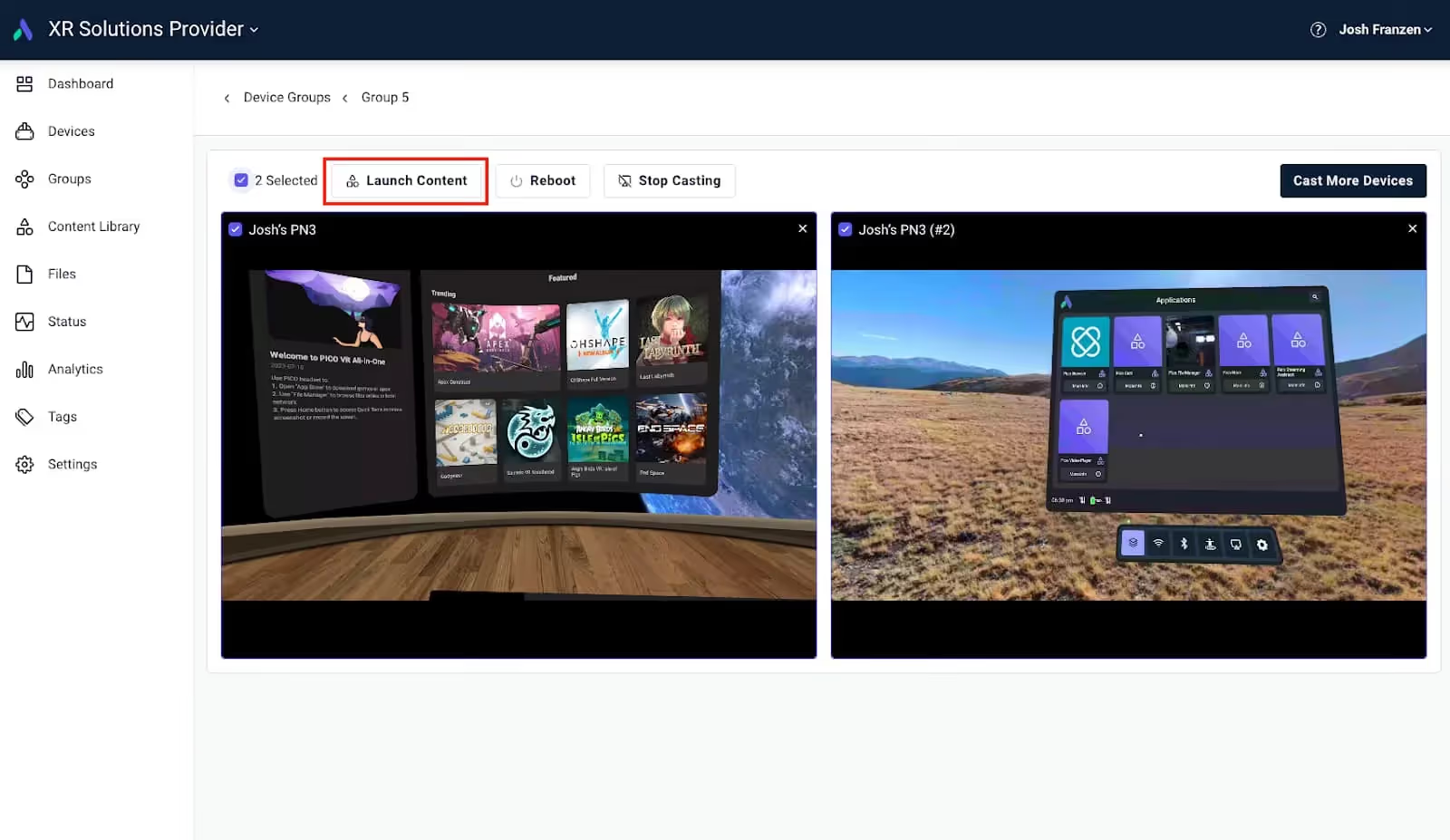
Synchronize your content experience with remote launching. Select the headsets you want to control, then select “Launch Content”. You can remotely launch apps, videos, and WebXR links to all your devices and view them at once.

Seamless Troubleshooting
What happens if your users run into an issue within VR? Training plans can easily get derailed if there’s a bug or issue with the XR content you’ve loaded on the headset. But you don’t have to wait for users to report issues or have to take off their VR headset to get things back on track. Casting empowers administrators to proactively resolve issues quickly. Since you’ll be able to see what the user sees, you can troubleshoot VR devices and address challenges promptly.
Not only can you use Casting to diagnose the issue, but you can remotely reboot devices and launch content (i.e., different app versions) from the web portal to potentially resolve the issue. This ensures uninterrupted experiences, minimizes downtime, and enables users to focus on the core objectives of their VR interactions.
How Does Casting Work?
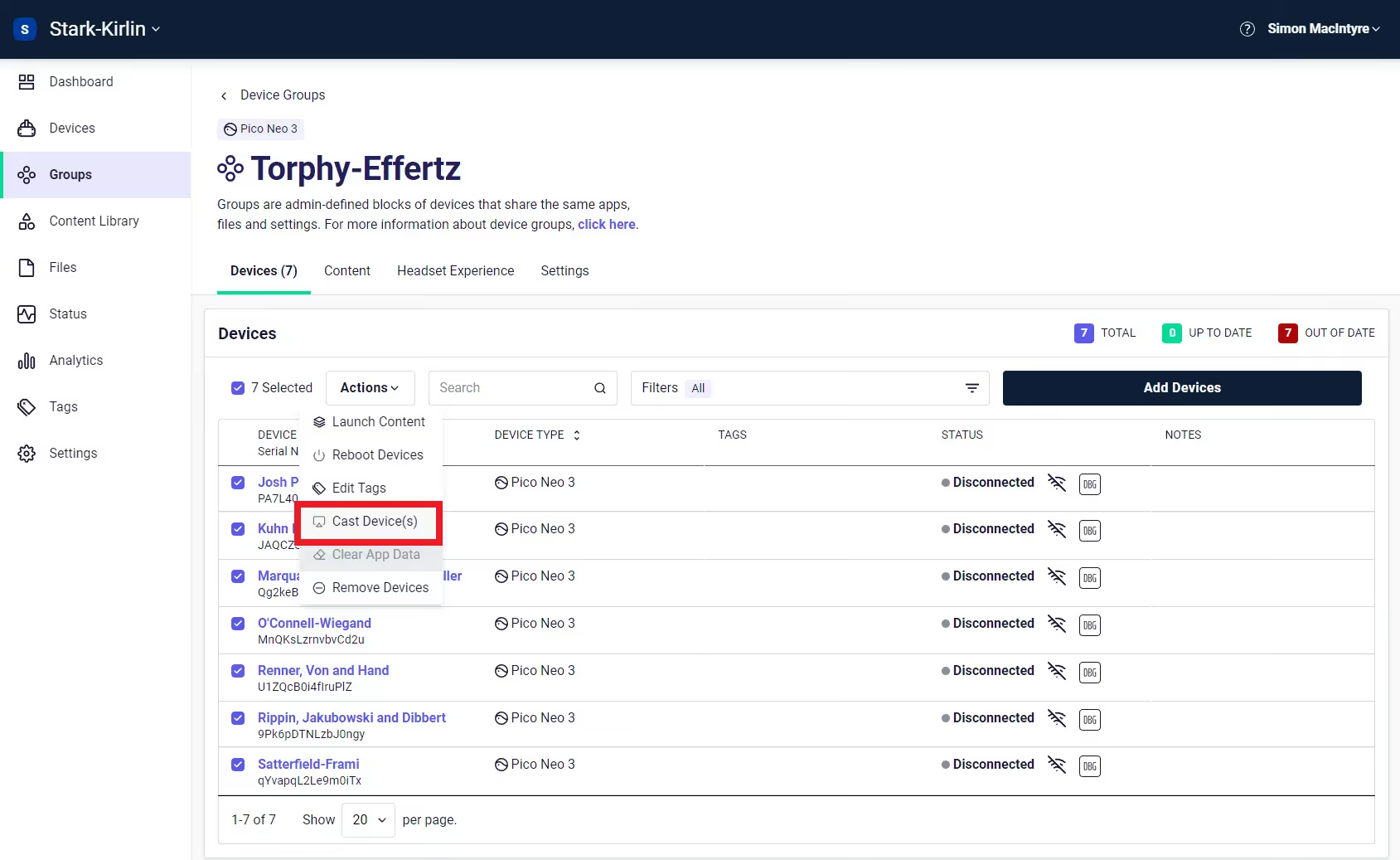
It’s really simple to use Casting. Log in to your organization, navigate to Groups on the left navigation bar, and click on a specific Group you’d like to use with Casting. From the Actions menu, click “Cast Devices.”
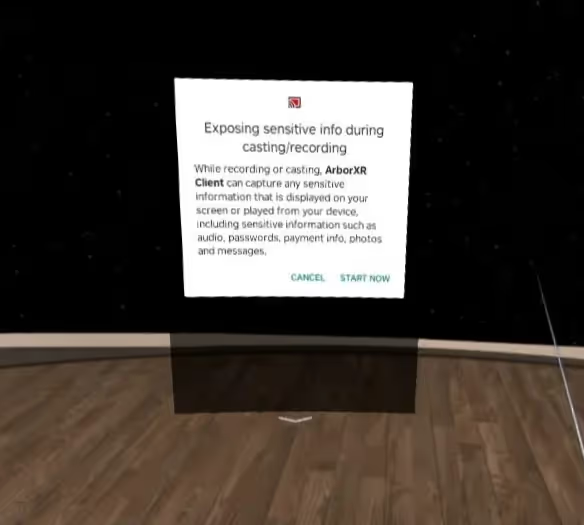
On some devices, after a few seconds, a dialog will open on your user’s device.
Users should select “Start Now.” Keep in mind, if they press “Cancel,” you’ll need to reboot the device in order for this permission dialog to open again.
After a few seconds, you will see in the ArborXR web portal what your user is seeing in their VR headset. See below to view what Casting looks like in the web portal:
What Devices Does Casting Work On?
This feature is supported on the following devices:
- Meta Quest 2
- Meta Quest 3
- Meta Quest Pro
- PICO 4 Enterprise
- VIVE Focus 3
- PICO Neo 3 Pro
- PICO G3
- PICO Neo 2
- PICO G2 4K
- Phones and tablets
- VIVE Flow (coming soon)
Using a device that isn’t listed above? Contact us to inquire about support.
To learn more about how to set up and use Casting, click here.
Conclusion
For administrators and leaders seeking to harness the transformative power of virtual reality, extended reality, and augmented reality, Casting is a game-changer. It not only simplifies the complexities of VR but also offers an intuitive way of managing user experiences.
Casting serves as one of the keys to unlocking the true potential of VR for your organization. Administrators gain control, visibility, and the ability to guide users through immersive experiences. And with ArborXR’s other tools, like the remote launch of XR content, kiosk mode, and ArborXR Home, you can control what users see and do in VR. By optimizing the in-headset experience, administrators and facilitators can unlock new levels of productivity, innovation, and success.
Casting is a transformative solution that addresses some of the most often-felt pain points of VR implementation. With Remote View and other tools to manage devices, XR content, and the user experience, your organization will be set up for success.
Whether it’s using virtual reality for collaboration, training, design, manufacturing, healthcare, or education – the future of immersive experiences starts with having the right tools in hand.
Ready to take your organization to the next level with VR? To use Casting, get started on the Essential or Enterprise plan today.